
01What the Message block does
A flow is your bot's script: a chain of steps on the canvas. Each step is a block. The Message block is the step that sends something to the person — text, buttons, a photo or a file.
Most of any bot is Message blocks. Hellos, menus, answers, confirmations — all of them.
In this guide we build the welcome message of a small coffee shop bot, Bean Corner. It greets the person by name and offers three buttons:
- ☕ Browse coffee — shows this week's coffee
- 📦 Where is my order? — asks for an order number
- 🌐 Our website — opens the shop's website
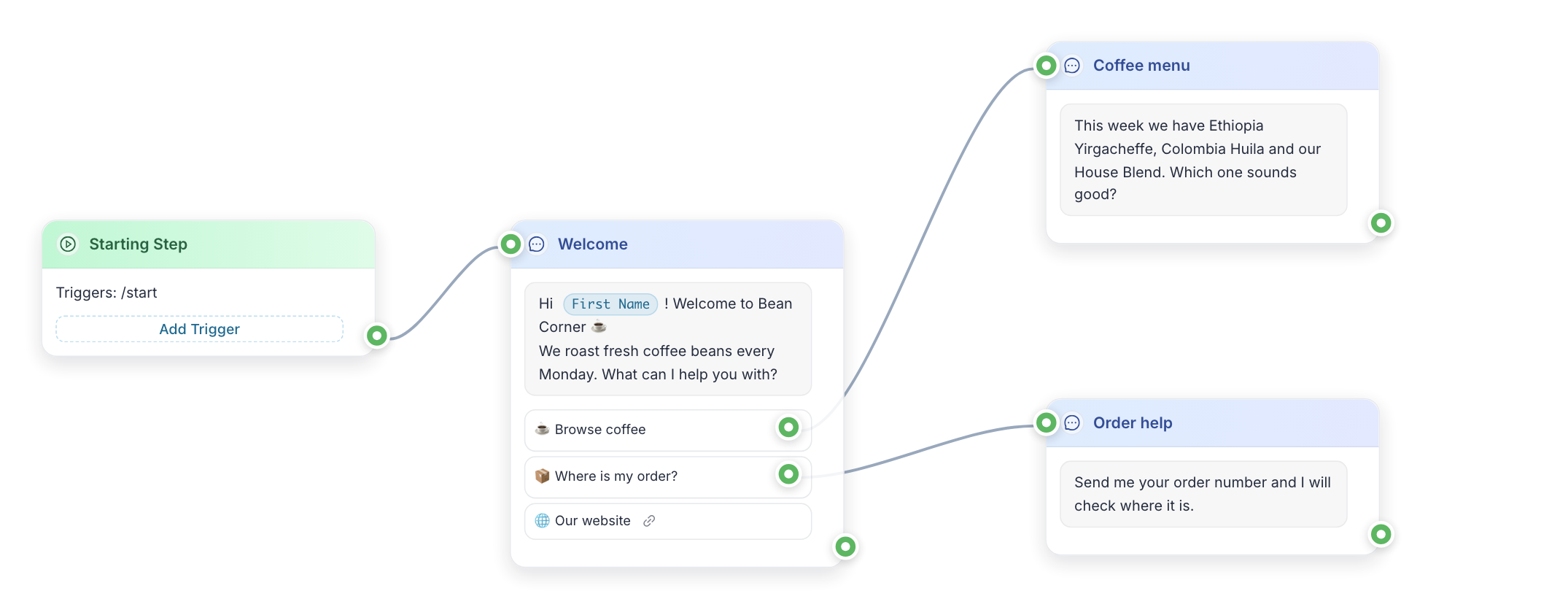
Notice the green dots. Each block has one on its left side (where the bot comes in) and one on its right side (where it goes next). The first two buttons have their own dot too, so each button can lead to a different block. 🌐 Our website has no dot: it opens a link instead of moving the bot on.
02Add the block
- Open your flow.
- Click the round + button in the bottom-right corner of the canvas.
- Choose Message.
- Click the new block. Its editor opens on the left.
03Write the text
At the top of the editor is Message Text. Type what the bot should say.
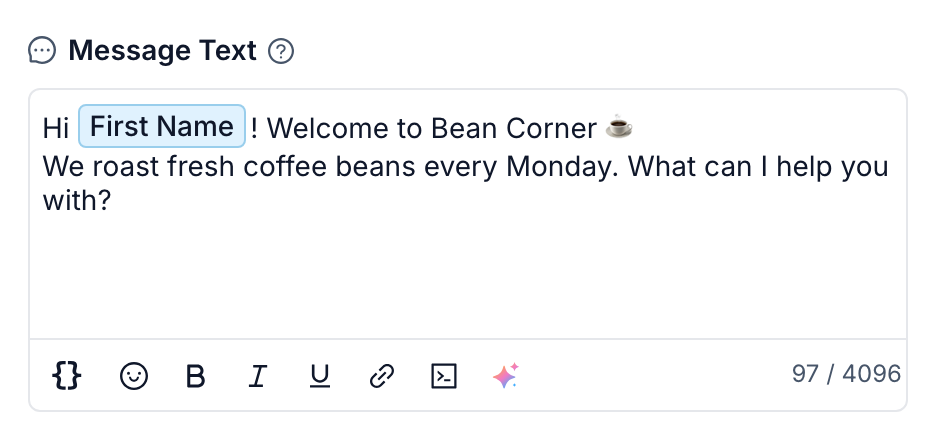
Write for a phone screen. Short lines. One idea per message. Our welcome is two sentences:
Hi {{First Name}}! Welcome to Bean Corner ☕
We roast fresh coffee beans every Monday. What can I help you with?
The toolbar under the text has formatting (bold, italic, underline, link) and an emoji picker.
04Greet people by name
The blue First Name chip in the text is a variable — a placeholder that the bot swaps for the real value when it sends the message. Alex sees "Hi Alex!", Maria sees "Hi Maria!".
To insert one:
- Put the cursor where the name should go.
- Click
{}— the first button in the toolbar. - Click System, then First Name.
Do not type the name of the variable by hand. Typed text stays text, and the person would literally see "First Name". Everything about variables is in Variables: Remember What Users Tell You.
Some people have no first name in their messenger profile. Write the sentence so it still reads well without one.
05Let AI write or polish the text
The last button in the toolbar is a small colored sparkle. Its tooltip says Write with AI when the field is empty and Improve with AI when there is already text.
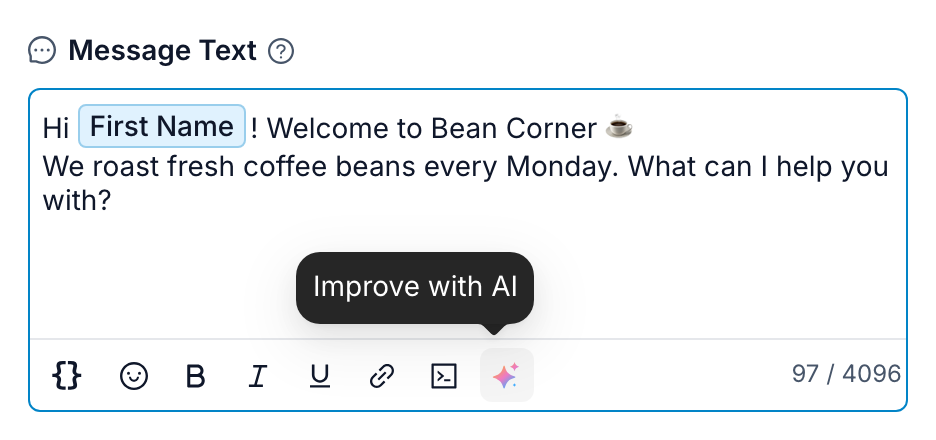
Click it and the AI assistant chat opens.
- Write with AI asks what style you want (Make it friendly, Style for marketing or Engaging), then asks you to describe what the message is about.
- Improve with AI offers Make it more friendly, Style for marketing, Fix grammar and Make more engaging.
The AI answers in the chat. Copy the version you like into Message Text. Always read it before you save: you know your shop, the AI does not.
06Add buttons
Scroll down to Buttons and click + Add Button. Type the label. Repeat for each button.
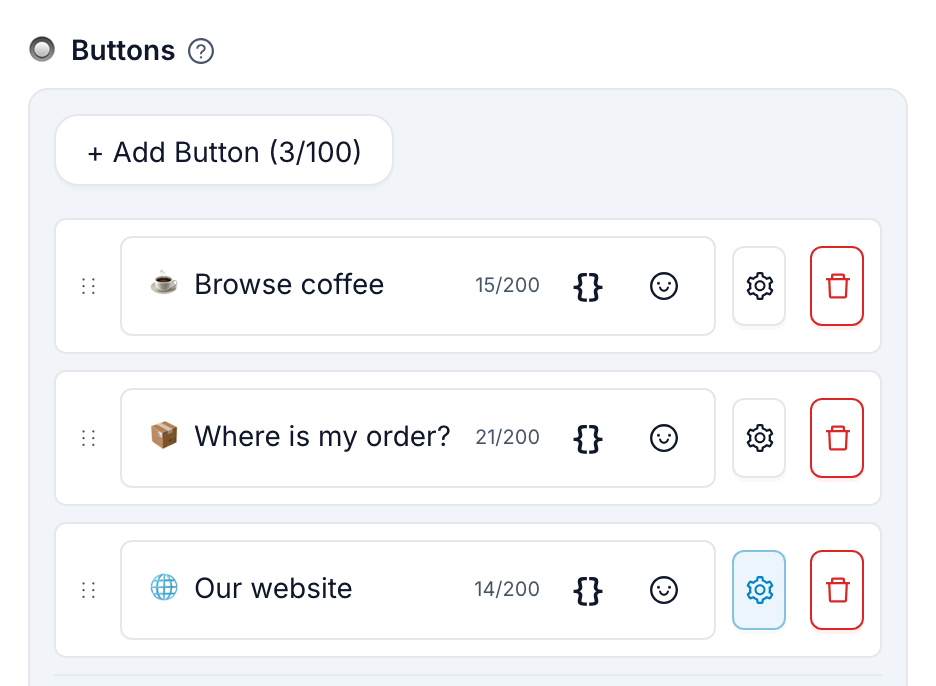
Each button row has two icons on the right: a gear (settings) and a red bin (delete).
Keep it to two or three buttons with clear labels. "📦 Where is my order?" says exactly what happens. "Info" does not.
Make a button open a website
- Click the gear next to the button. Button Settings opens.
- Paste the address into URL, for example
https://beancorner.example. - Click anywhere outside the window to close it.
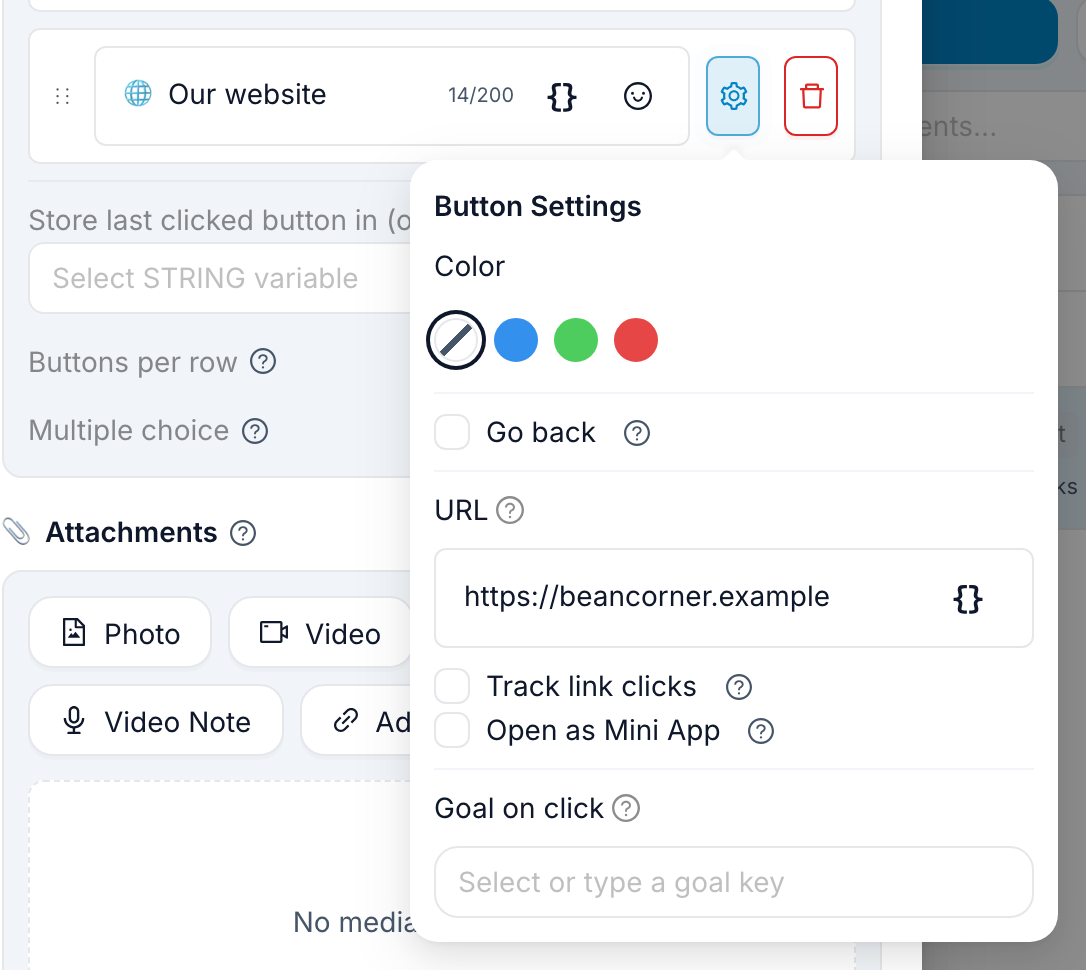
A button with a URL opens that page in the browser. It does not move the bot to another block, so it gets no dot on the canvas.
The same window has a few more options. The ones a beginner may want:
- Color — the button color.
- Go back — the button returns the person to the screen they came from. No connection needed.
- Track link clicks — counts how many people clicked the link.
07Connect each button to the next block
A button does nothing until it leads somewhere.
- Save the block (see below) so the canvas shows the new buttons.
- Add the block the button should lead to — for us, a Message called "Coffee menu".
- On the Welcome block, find the green dot next to ☕ Browse coffee.
- Drag from that dot to the green dot on the left side of "Coffee menu".
Do the same for 📦 Where is my order? and the "Order help" block.
The dot at the very bottom-right of the block is the path the bot takes when it does not wait for a button — use it to send the next message straight away.
08Attach a photo or a file
Under the buttons is Attachments.
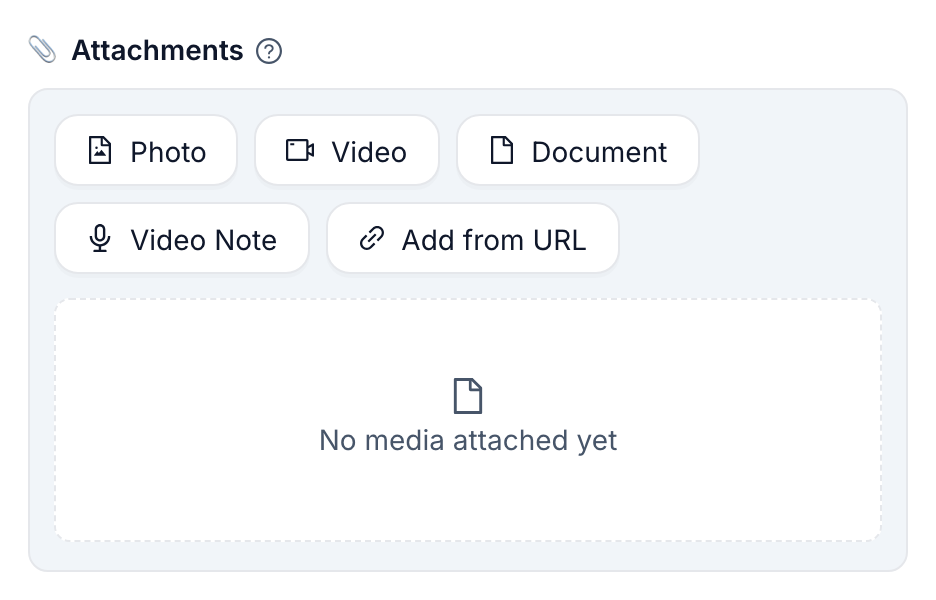
- Photo, Video, Document — upload a file from your computer.
- Video Note — a round video message, the kind Telegram shows in a circle.
- Add from URL — use a file that is already online. Paste its address and pick the type.
The text becomes the caption under the file. A photo of this week's coffee next to the coffee list sells better than the list alone.
09Save Changes
Click Save Changes at the bottom of the editor. Until you do, nothing is stored. Cancel closes the editor and throws your edits away.
10Test it
- Click Test in the toolbar at the top right. The Test your bot panel opens with a chat.
- Send
/start. - Press every button.
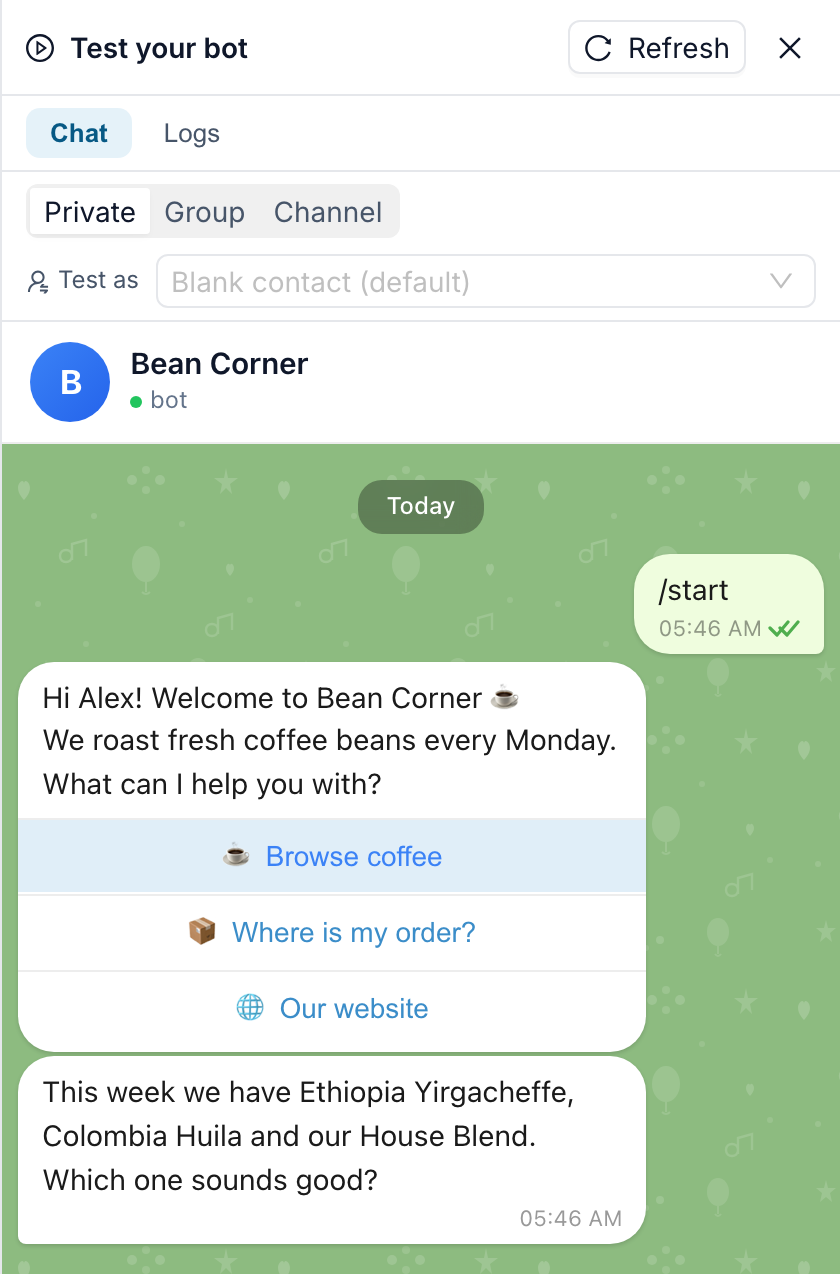
Check three things: the name shows up instead of an empty gap, each button leads to the right message, and the website button opens the site. If you changed something while the panel was open, click Refresh in the panel.
Testing does not change the real bot. When you are happy, click Deploy to publish.
11If something did not work
The person sees "First Name" as plain words. The variable was typed instead of inserted. Delete it and insert it with {}.
A button does nothing when pressed. Its dot is not connected to any block. Drag a connection from it.
A button has no dot on the canvas. It has a URL or Go back turned on in Button Settings. That is expected — those buttons do not lead to a block.
Your edits are gone. You closed the editor without Save Changes.
The real bot still shows the old text. Saving is not publishing. Click Deploy.
12Next up
Once the message reads well, decide what makes the bot send it: Triggers: How Your Bot Starts