
01Open the flow
- Click Automation in the left menu.
- In the Flows list, click Main menu.
The flow opens on the canvas — the big dotted area on the right.
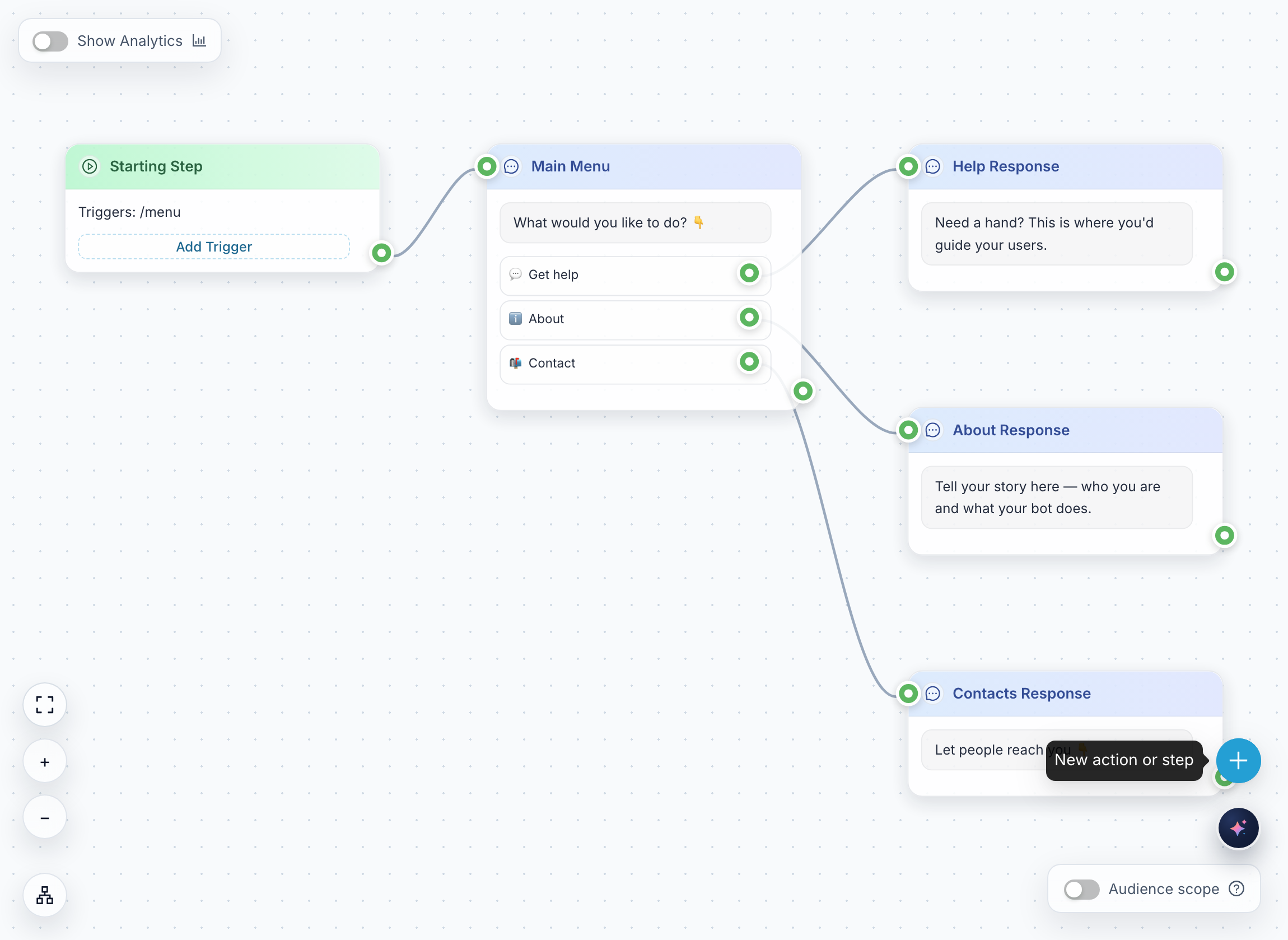
02Click the + button
Find the round blue + button in the bottom-right corner of the canvas. When you point at it, it says New action or step. Click it.
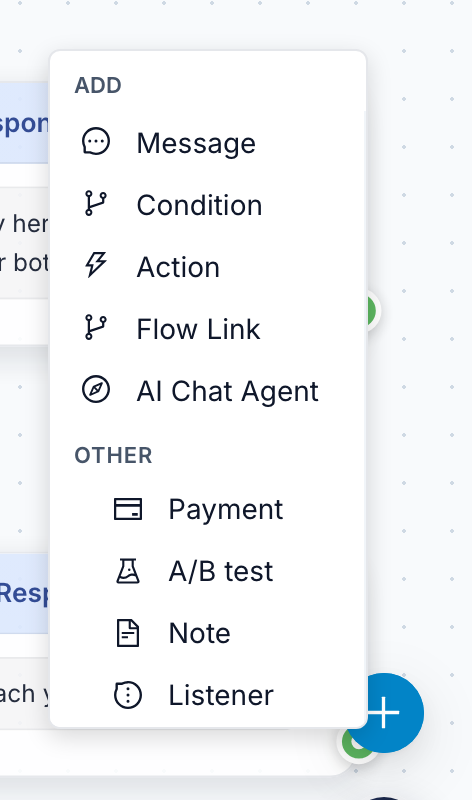
03Choose Message
A menu opens with the header Add. Click Message — the first item.
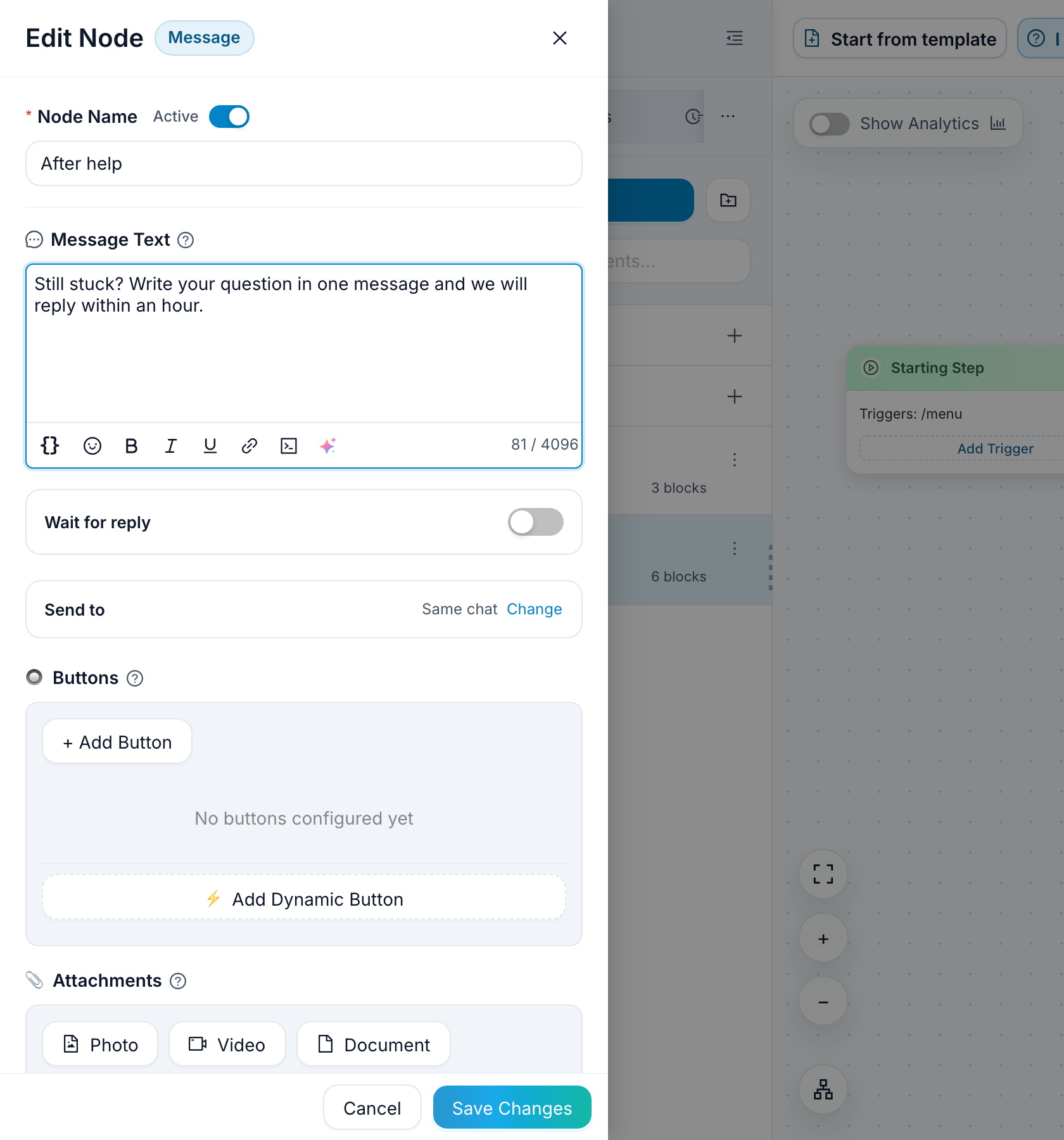
A new block called New Message appears on the canvas, and its editor opens on the left side of the screen.
04Write the message and save
- Optional: in Node Name, give the block a name you will recognize later, for example
After help. Only you see this name; your users never do. - In Message Text, type what the bot should send.
- Click Save Changes at the bottom of the editor.
The block now exists, but it is not connected to anything yet. The bot only reaches a block through a line, so for now it never sends this message.
05Connect it
Lines between blocks set the order: the bot goes from one block to the next along the line.
Each block has small green dots:
- the dot on the right side is its output — where the line to the next step starts;
- the dot on the left side is its input — where a line comes in.
To connect Help Response to your new block:
- Point at the green dot on the right side of Help Response.
- Press and hold the mouse button, and drag toward your new block. A dashed line follows the pointer.
- Release it over the new block. The line turns solid.
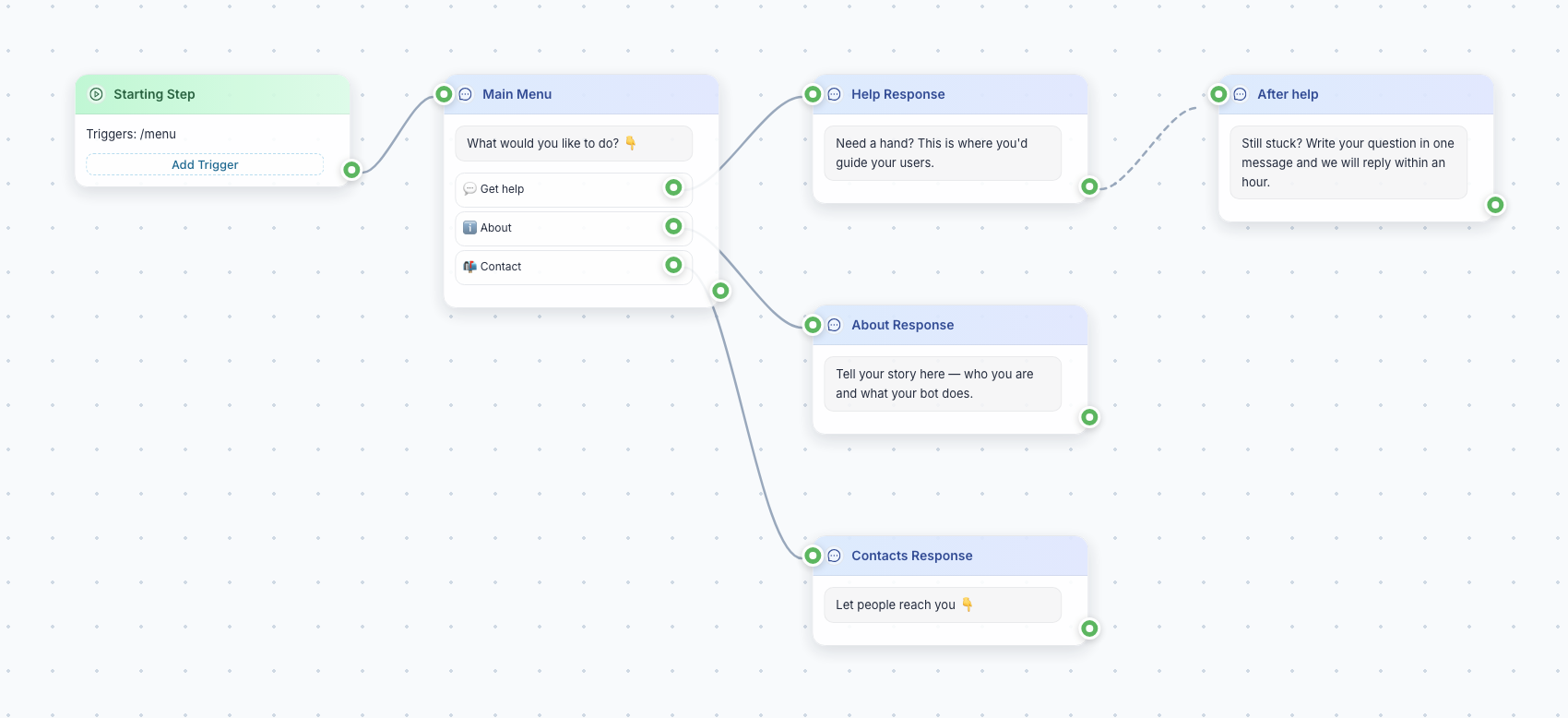
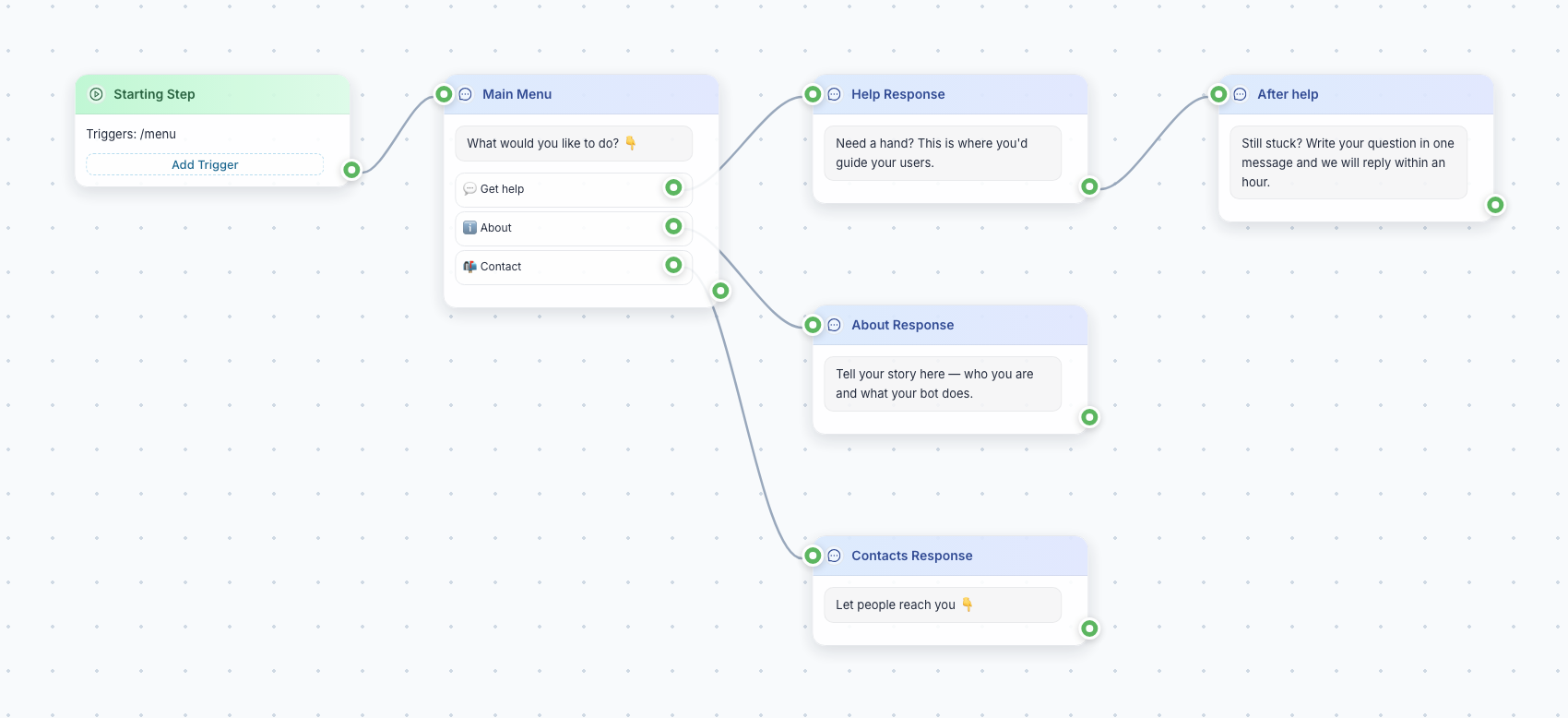
Now, when someone presses 💬 Get help, the bot sends the help text and then your new message.
A quicker way next time. Drag from a block's right dot and release it on an empty part of the canvas. The same Add menu opens. Pick Message, and the new block is created already connected — Steps 2, 3 and 5 in one move.
06Check that it works
- Click Test in the top-right toolbar. The Test your bot panel opens on the right, and the bot sends its first message on its own.
- Press 💬 Get help in the chat.
- You should see the help text, and right after it your new message.
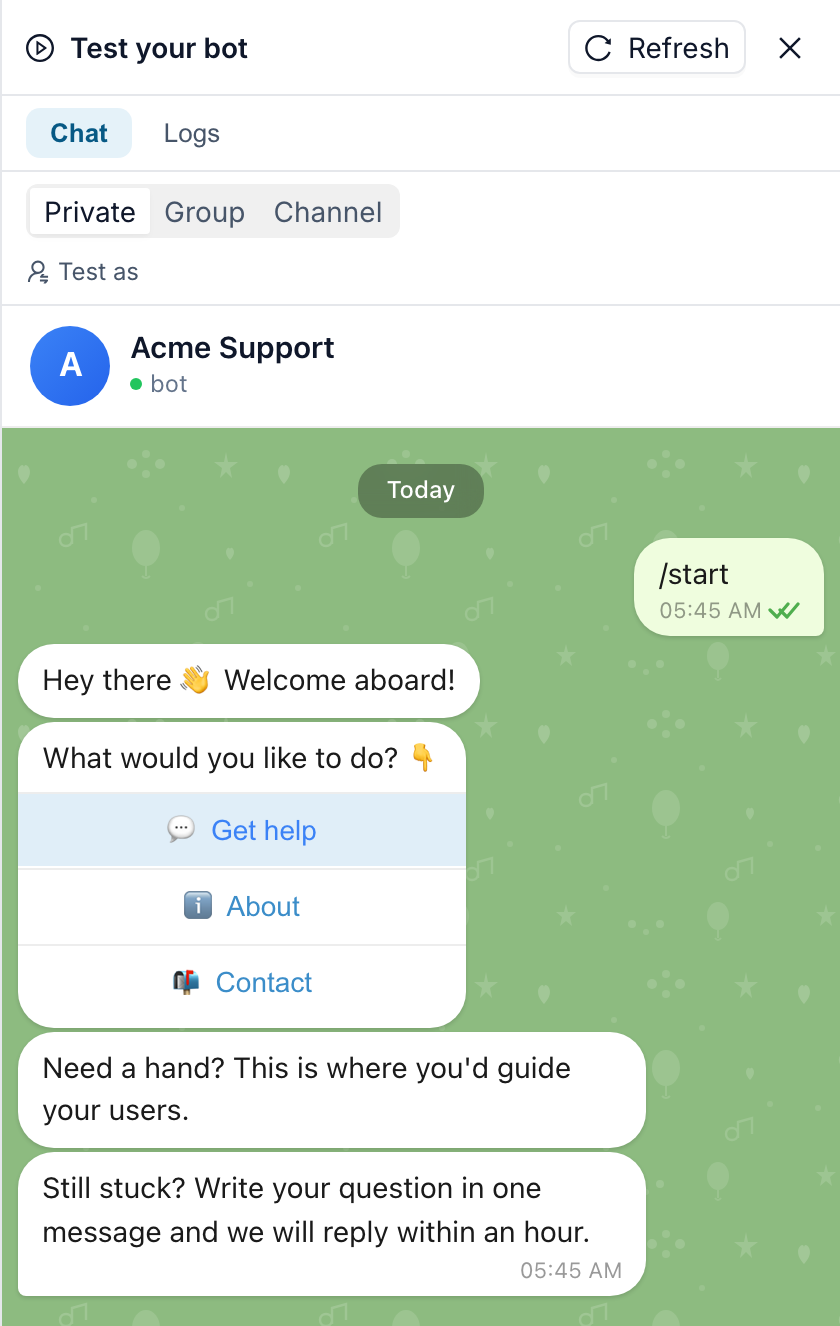
If the new message does not appear, check the line from Step 5: without it the bot never reaches the block.
Your real Telegram bot still shows the old version until you click Deploy (publish). See Test and Deploy Your Bot.
If something did not work
The line does not stick. Start the drag exactly on the green dot on the right side of the first block, and release over the body of the second block.
Releasing on an empty spot opened the Add menu. That is the quick way from Step 5. Pick a block type, or click anywhere outside the menu to close it.
The dot already has a line. One output dot holds one line. To change where it goes, click the line, click the trash-can button that appears in its middle, then draw a new line.
Next up
Now shape what that block actually sends — text, buttons and media: Message Node Basics