
01What the Condition block does
A flow is your bot's script: a chain of steps on the canvas. Each step is a block.
The Condition block is a fork in the road. The bot checks one thing and then goes one of two ways: Yes if the check is true, No if it is not.
Without it, every person gets the same next message. With it, the bot can answer differently depending on what the person told it.
02The example we build
Our coffee shop bot, Bean Corner, delivers across Germany. In Berlin a courier brings the order the same day. Everywhere else it goes by post.
So the bot asks "Which city should we deliver to?", saves the answer, and checks it:
- the city is Berlin → Yes → "Our courier brings your coffee today"
- any other city → No → "We ship by post, it takes 2–3 days"
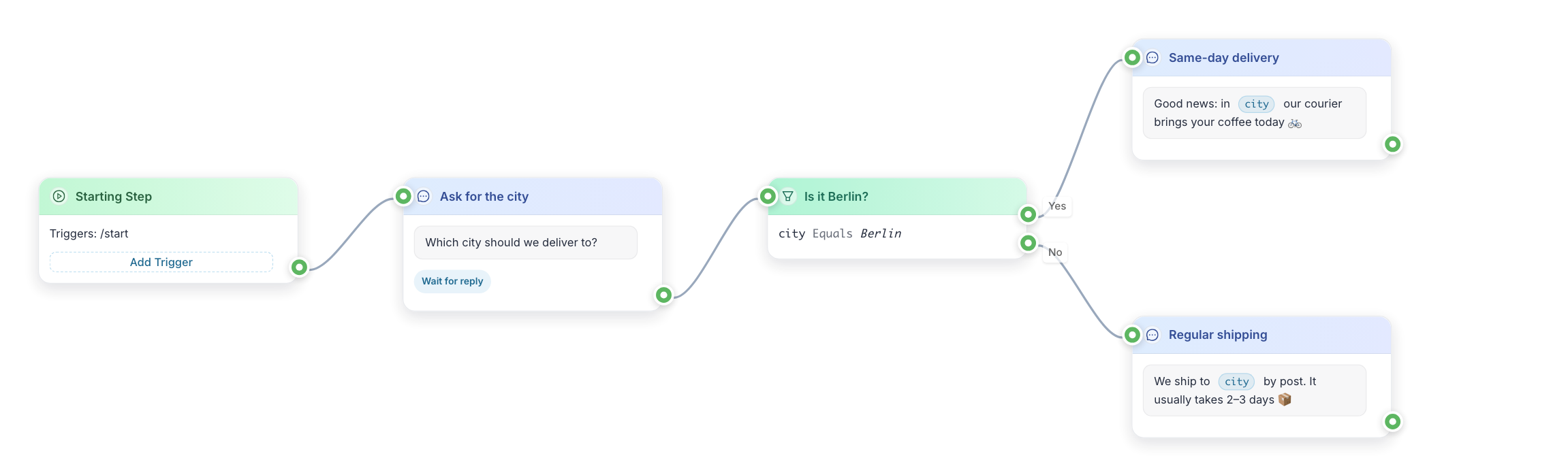
The question block saves the answer into a variable called city — a named box that holds a value for each person. It does that with Wait for reply and Save reply to variable; Ask Questions and Collect Answers shows how. A condition can only check something the bot already knows, so this part has to come first.
03Add the block
- Click the round + button in the bottom-right corner of the canvas.
- Choose Condition.
- Drag from the green dot on the right side of the question block to the green dot on the left side of the new block.
- Click the new block. Its editor opens on the left.
Give it a name that reads like a question, such as "Is it Berlin?". Then the canvas explains itself.
04Set up the check
A check has three parts: what to look at, how to compare it, and with what. On the canvas our finished rule reads city Equals Berlin.
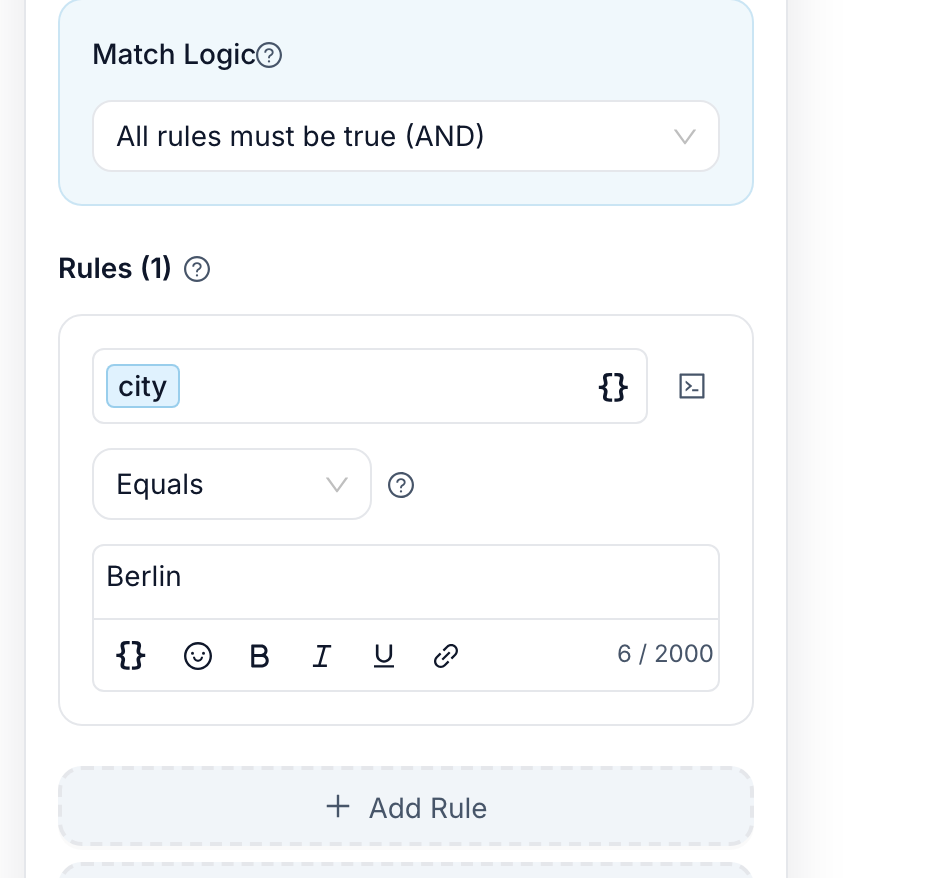
1. Pick what to check
- In the rule under Rules (1), click
{}in the first field. The variable picker opens. - Click Contact on the left.
- Click
city.
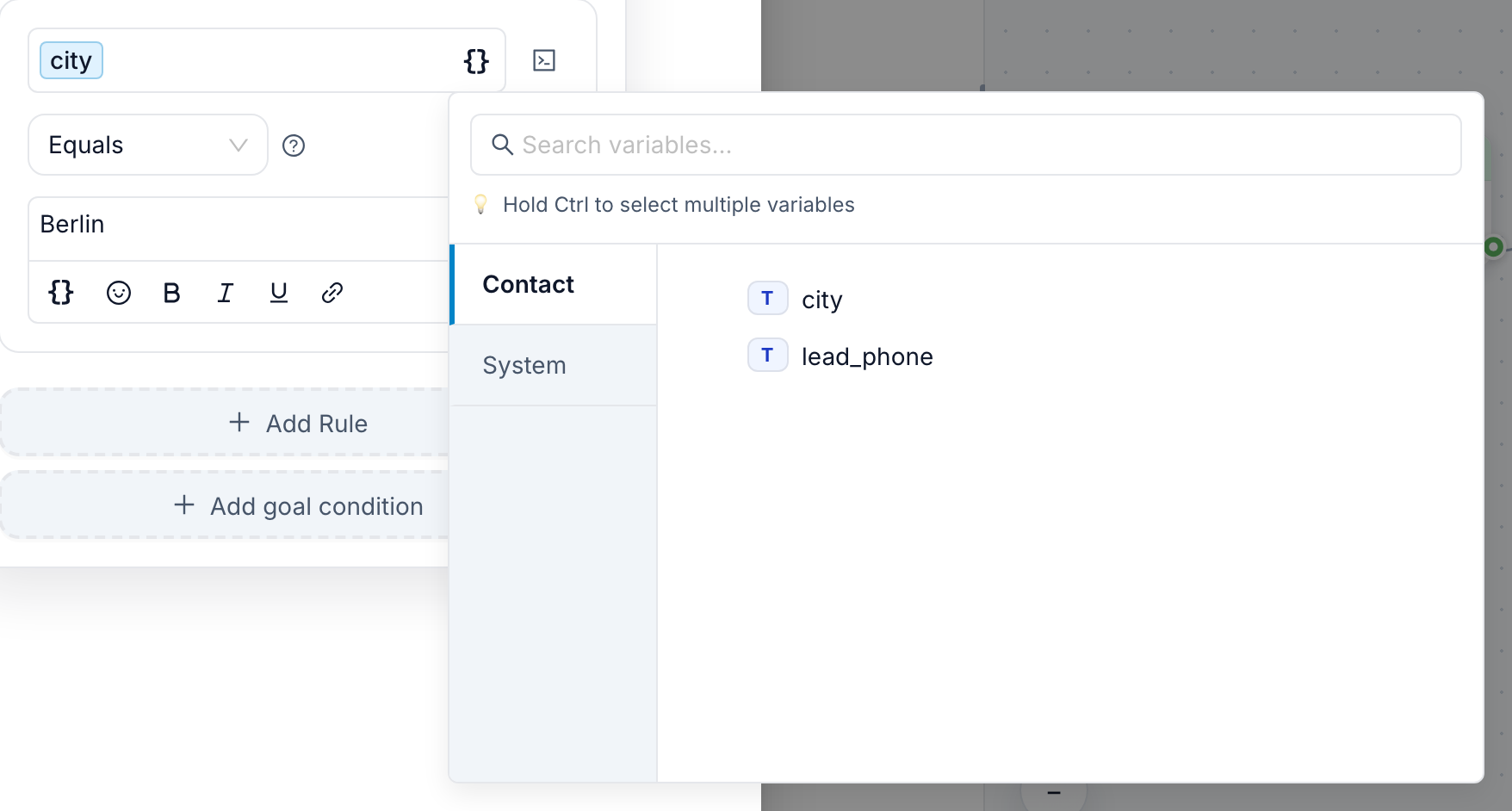
The picker has more categories. The ones you will meet most:
- Contact — answers you saved for this person, like
city. - System — facts the bot knows already, like First Name or Language Code.
- App — settings that are the same for everyone.
- Actions — results of an action earlier in the flow. It shows up only when there is one.
2. Pick how to compare
Open the list under the variable. It shows Equals by default.
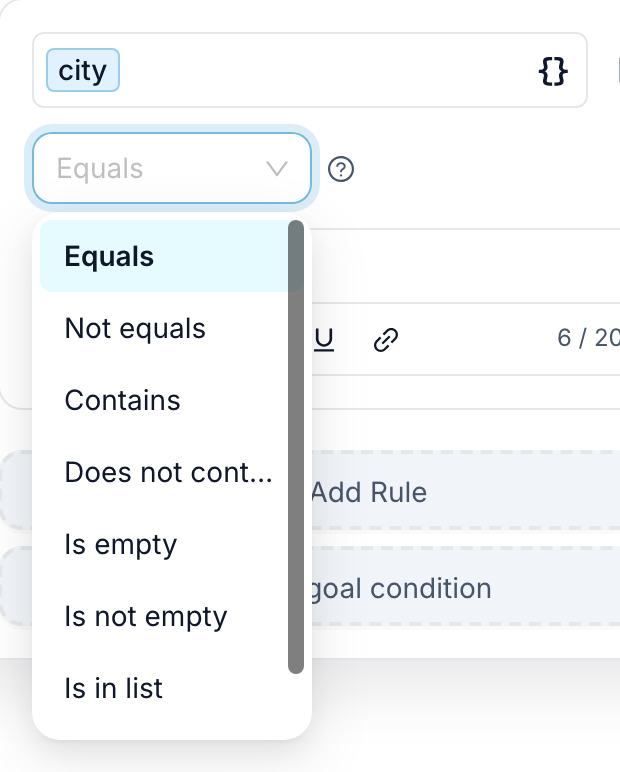
The three you need most:
| Operator | Yes when… | Example |
|---|---|---|
| Equals | the value is exactly this | city Equals Berlin |
| Contains | the value has this word inside | a question Contains refund |
| Is not empty | the value exists at all | lead_phone Is not empty — the person left a phone |
Equals and Contains ignore capital letters and spaces at the start and end. "berlin", "Berlin" and " BERLIN " all match Berlin.
The list changes with the type of the variable. For a number you also get Greater than and Less than; for a date, Before and After.
3. Type the value
Type Berlin in the last field. Is empty and Is not empty have no value field — there is nothing to compare with.
05More than one rule: Match Logic
Most conditions need one rule. When you need more, click Add Rule under the first one.
Then Match Logic at the top decides how the rules combine:
- All rules must be true (AND) — Yes only when every rule passes.
- Any rule can be true (OR) — Yes when at least one passes.
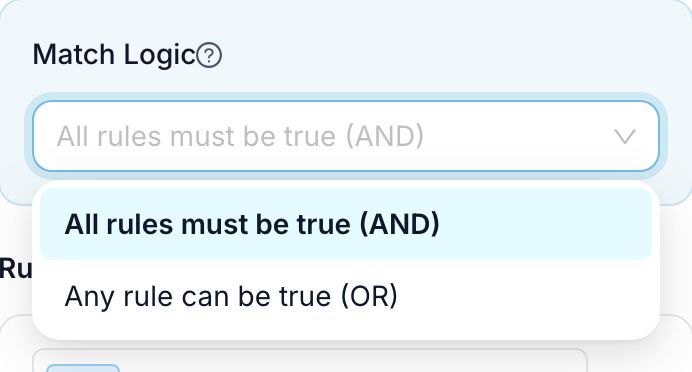
Example: same-day delivery in Berlin or Potsdam. Add a second rule city Equals Potsdam and pick Any rule can be true (OR).
With a single rule, this setting changes nothing.
06Save and connect both outputs
- Click Save Changes at the bottom of the editor.
- On the canvas, the block now has two green dots on the right: Yes and No.
- Drag from Yes to the message for Berlin ("Same-day delivery").
- Drag from No to the message for everyone else ("Regular shipping").
Connect both. If No leads nowhere, everyone outside Berlin gets silence.
If city is empty — the person never answered — the check is not true, so the bot goes down No.
07Test both paths
- Click Test in the toolbar at the top right. The Test your bot panel opens.
- Send
/startand answerBerlin. You should get the same-day message. - Send
/startagain and answerHamburg. You should get the post message.
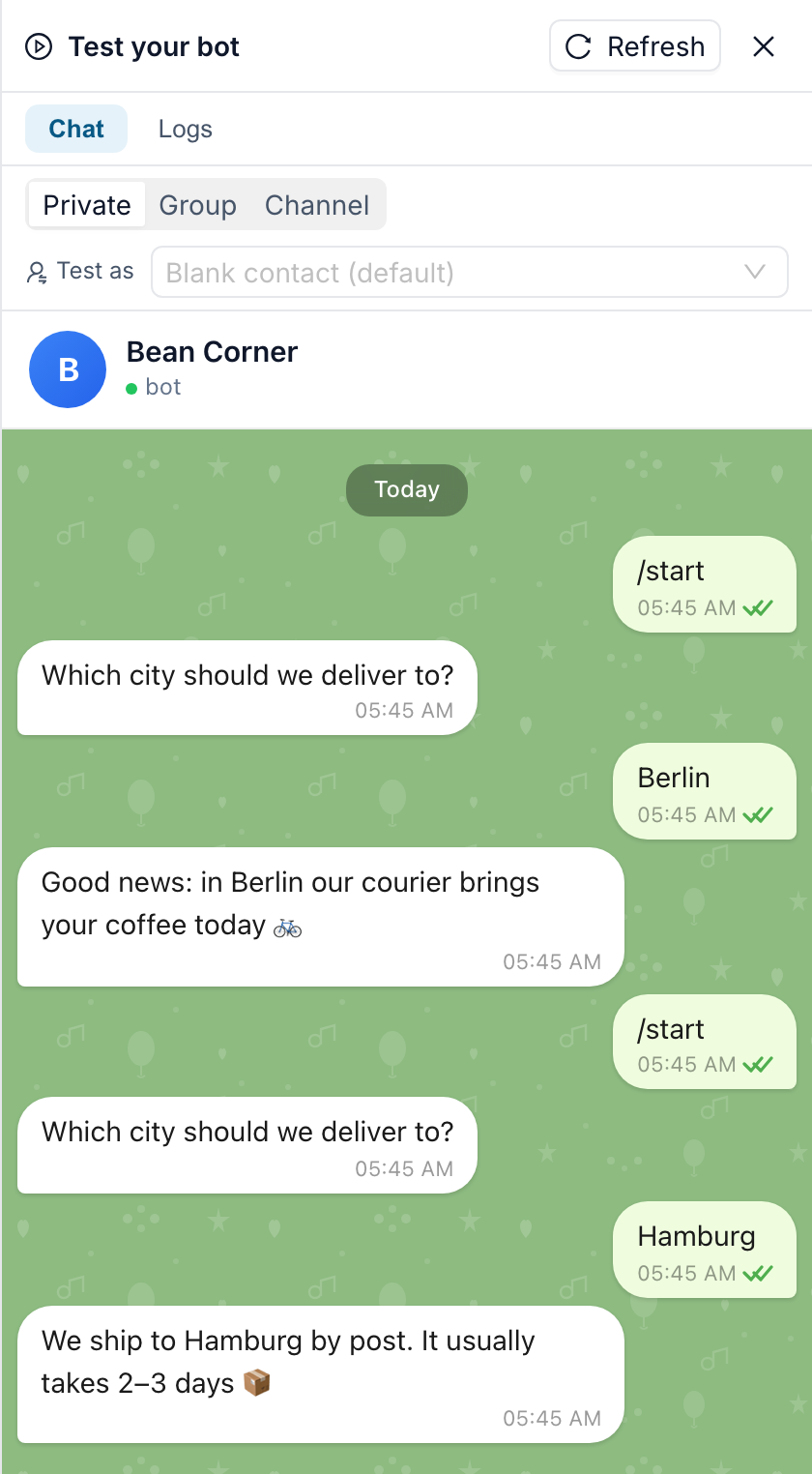
Always test both ways. A condition that only ever says Yes looks fine until the first person from another city writes in.
The Logs tab next to Chat lists every block the bot ran, so you can see which way it went.
Testing does not change the real bot. When both paths work, click Deploy.
08If something did not work
The bot always goes down No. Usually the variable is empty: the question before the condition does not save into city. Open the question block and check Save reply to variable. Also check that the value is spelled the way people type it.
The bot stops after the condition. One output is not connected. Drag a line from both Yes and No.
The rule shows the word "city" instead of a chip. It was typed, not picked. Delete it and pick it with {}.
Several rules and the result is wrong. Check Match Logic. AND means all rules must pass; OR means one is enough.
09For advanced users
- The value field has its own
{}button, so you can compare two variables — for example a saved answer against an App setting. - A condition can also check a goal the contact reached, with Add goal condition.
- To send people down two paths at random (an A/B test), click A/B test in an empty condition.
10Next up
Branching decides where people go; actions decide what happens there: The Action Node: Everything Your Bot Can Do