
We make FlowCastle, a Telegram bot builder, so we are not neutral here. That is why the first half of this page is a plain n8n tutorial with no detour. We built the bot below on n8n 2.42.6 and replayed Telegram messages and button taps through it to check every branch. The screenshots come from that build.
Short answer: n8n builds a simple Telegram bot fast. A trigger, a Switch and a few Telegram nodes give you a menu, buttons and an AI agent. It gets hard when the bot has to hold a conversation: wait for a typed answer, go back one screen, keep a list of the people who wrote. For those, a bot builder is less work, and n8n stays useful behind it.
You can import the finished workflow from a file in Step 6. A FlowCastle template for the same kind of bot is linked at the end.
What you will build
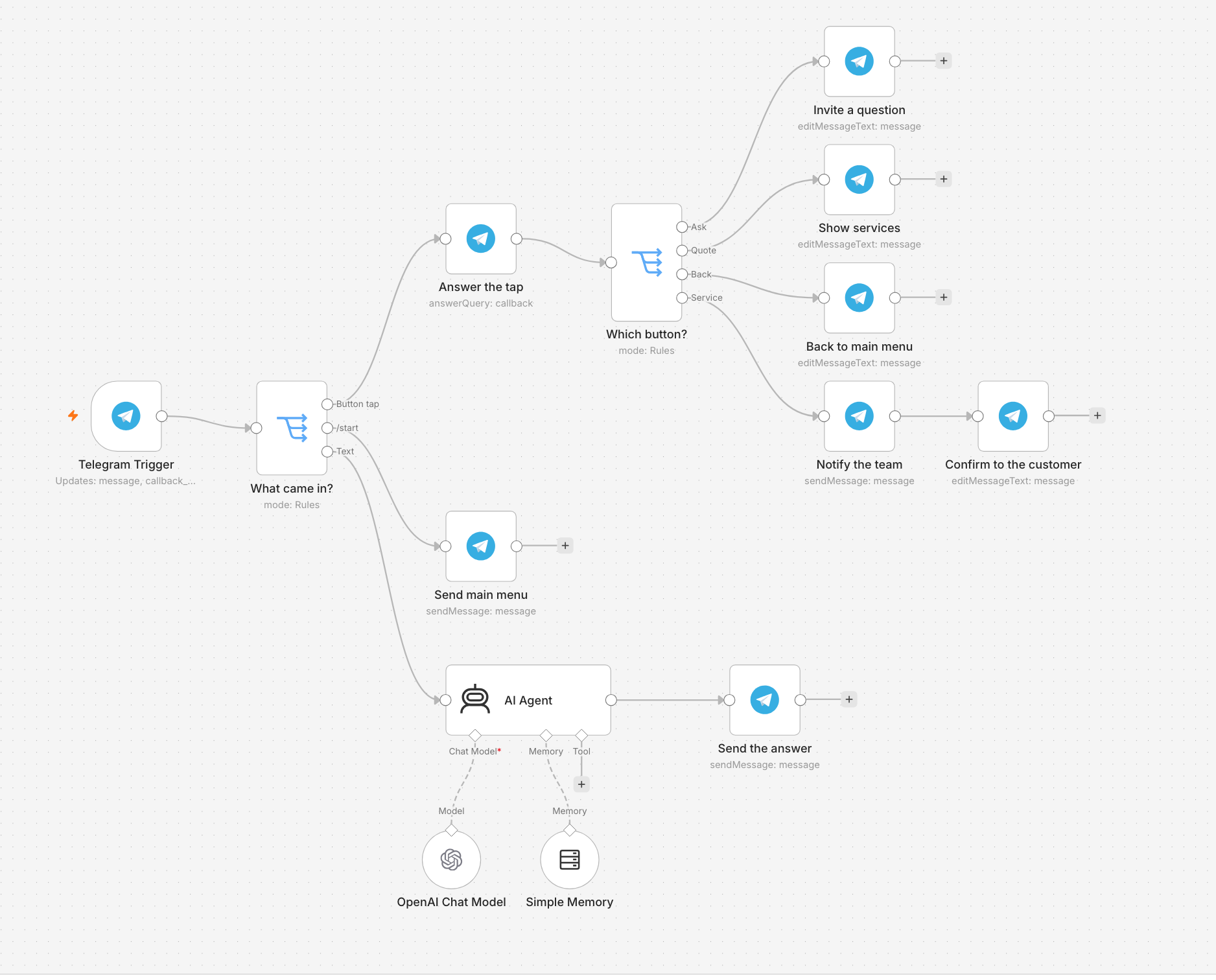
A bot for a small web studio, 14 nodes in total:
/startshows a menu with two buttons: Ask a question and Get a quote.- Get a quote opens a second menu with three services and a Back button.
- Picking a service sends a message to the team and confirms to the customer.
- Any typed question goes to an AI agent that remembers the chat.
What you need, and whether you need a server
- A bot token. Open @BotFather in Telegram, send
/newbot, pick a name and a username ending inbot. BotFather replies with the token. - An n8n that Telegram can reach over HTTPS. Telegram delivers messages by calling a URL on your n8n, and it only accepts HTTPS. Our local n8n registered
http://localhost:5678/webhook/...as that URL. Real Telegram rejects it withBad Request: bad webhook: An HTTPS URL must be provided for webhook. - A model key for the AI step, for example from OpenAI.
So can you run an n8n Telegram bot without a server? Only on n8n Cloud, where n8n is the server. When we checked in October 2026, the Starter plan was €20 a month billed annually, with 2,500 executions. Self-hosting has no licence fee, but you need a machine that is always on, a domain, a TLS certificate and the WEBHOOK_URL variable set to your public address. A tunnel such as ngrok works for testing on a laptop.
Step 1: Add the Telegram Trigger
Create a workflow and add a Telegram Trigger node. In Credential, create a new one and paste the token into Access Token.
In Trigger On, choose Message and Callback Query. The second one matters: a button tap does not arrive as a message. It arrives as a callback query, and a trigger that listens only for messages never sees it.

Read the yellow notice too. We come back to it below.
Step 2: Sort what came in
Add a Switch node after the trigger and give it three rules, in this order:
| Output | Condition |
|---|---|
| Button tap | {{ $json.callback_query }} exists |
| /start | {{ $json.message.text }} starts with /start |
| Text | {{ $json.message.text }} exists |
Keep /start above Text. A /start message matches both rules, and the Switch sends it to the first one that matches. Anything that matches no rule, such as a photo or a sticker, goes nowhere. In our test a photo produced a "successful" execution and no reply at all. Add a fourth output with a polite fallback if that bothers you.
Step 3: Send a menu with inline buttons
Connect the /start output to a Telegram node with the operation Send Message:
- Chat ID:
{{ $json.message.chat.id }} - Text:
Hi {{ $json.message.from.first_name }}! I'm the Northwind Studio bot. What can I do for you? - Reply Markup: Inline Keyboard
Under Inline Keyboard, add a row, then Add Button. Set Text to 💬 Ask a question, open Additional Fields on the button and set Callback Data to ask. Add a second row with 📋 Get a quote and callback data quote. The callback data is what your workflow receives when the button is tapped, so keep it short and unique.

One more setting: in the node's own Additional Fields, turn off Append n8n Attribution. It is on by default and adds a line saying the message was sent with n8n to every message.
Step 4: Handle the button taps
Every tap starts a new run of the workflow. Build this on the Button tap output:
- A Telegram node with Resource set to Callback and Operation set to Answer Query. Query ID is
{{ $json.callback_query.id }}. Skip this node and the button keeps showing a loading indicator in the customer's app. - A second Switch on
{{ $('Telegram Trigger').item.json.callback_query.data }}with four rules: equalsask, equalsquote, equalsback, starts withsvc_. - On each output, a Telegram node with the operation Edit Message Text. Editing replaces the menu in place, which reads better than a new message per tap. Set Chat ID to
{{ $('Telegram Trigger').item.json.callback_query.message.chat.id }}and Message ID to{{ $('Telegram Trigger').item.json.callback_query.message.message_id }}.
What each branch shows:
- quote: "What do you need a quote for?" with the buttons
Website(svc_website),Online store(svc_store),Something else(svc_other) and← Back(back). - back: the main menu again. n8n has no idea what the previous screen was, so this node is a second copy of the text and buttons from Step 3. Change the menu later and you change it in two places.
- svc_…: first a Send Message to your team's chat ID with the service and the customer's name, then an edit that says "Thanks! We'll message you here within one working day."
- ask: "Sure. Type your question and I'll answer."
Step 5: Add an AI agent with memory
Connect the Text output of the first Switch to an AI Agent node.
- Source for Prompt (User Message): Define below
- Prompt (User Message):
{{ $json.message.text }} - Options → System Message: who the bot is and how it should answer.
Attach a chat model, for example OpenAI Chat Model, to the agent's Chat Model port. Then attach Simple Memory to the Memory port:
- Session ID: Define below
- Key:
{{ $('Telegram Trigger').item.json.message.chat.id }} - Context Window Length: 10
The key is what keeps one customer's conversation apart from another's. The default setting takes the session from n8n's own chat trigger, which a Telegram workflow does not have.

Finish with a Telegram node, Send Message, with the trigger's chat ID and the text {{ $json.output }}.
We checked the memory. A second question from the same chat reached the model together with the first one. A question from another chat arrived alone. Two things to know before you rely on it:
- Simple Memory lives in n8n's process. We restarted n8n and the agent had forgotten the conversation. The notice in the node says the same, and adds that it does not work in queue mode. For a bot that customers use, swap it for the Postgres or Redis memory node.
- Formatting. The Telegram node sends with Parse Mode set to HTML by default, and models usually answer in Markdown. Customers then see raw asterisks, and Telegram can refuse a message that contains a stray
<. Tell the model in the system message to answer in plain text.
Step 6: Publish and test
Click Publish. n8n registers the webhook with Telegram. Open your bot and send /start.
Each message and each tap is one execution. Our ten test messages and taps made ten executions. On a plan with 2,500 executions a month, that is about 250 short conversations.
To skip the clicking, download the workflow file and use Import from File in the workflow menu. Then pick your own credentials in the Telegram and model nodes.
Where it gets hard
The bot above works. Then someone asks for one more thing: "after they pick a service, ask them to describe the project."
A question that waits for a typed answer
n8n runs every Telegram update on its own. When the customer types "A small shop for handmade candles", nothing in that run says it is the answer to your question. It looks like any other text, so the AI agent answers it.
To fix that you store the state of each conversation yourself. We built it with an n8n data table that has three columns: chat_id, step and service. It took six more nodes: the question itself, and five to track the state:
- load the row for this chat at the very start;
- save
step = awaiting_briefwhen the bot asks the question; - an If node before the AI agent: is this chat waiting for a brief?
- clear the step after the answer arrives;
- reset the step on
/start.
The workflow went from 14 nodes to 20 for one question. A second question means a second step value and more branches.

Two traps we hit while testing it:
- A first-time user got no reply. The lookup returns nothing for a chat it has never seen, and n8n stops a branch when a node returns no items. The execution was still marked successful. The fix is Always Output Data in the lookup node's Settings tab.
- An abandoned form eats the next message. Without the reset on
/start, a person who leaves halfway has their next question saved as the "brief".
n8n also has Send and Wait for Response, which pauses a workflow until someone answers. Approval buttons can be answered inside the chat. For a free-text answer, n8n's docs say the person presses a button and types into a web form, not into the Telegram chat. That is fine for an internal approval and awkward for a customer.
The 20-node version is here as a file if you want to study it. Create the data table first and select it in the four data table nodes.
Contacts, tags and broadcasts
n8n does not know who your users are. To message everyone next week, you must have saved every chat ID yourself: another table and another write on every update. Then you loop over the rows, pause between sends because Telegram allows about 30 messages a second for bulk sending, and handle the people who blocked the bot. It can be done. It is a second project.
One webhook per bot
Telegram keeps one webhook address per bot. n8n has a test URL and a production URL, so a bot is either live or being tested, not both. n8n's docs suggest a second bot for testing.
We also published two workflows on the same bot. Both showed as published, only the last one received messages, and unpublishing one of them deleted the bot's webhook, which silences the other. That is the yellow notice from Step 1 in practice.
Keeping it running
If you self-host, the server, the certificate, the updates and the backups are yours. When n8n is down, the bot is silent, and Telegram does not tell your customers why.
The same bot in a bot builder
A bot builder starts from the conversation, so the hard parts above are settings, not nodes. Here is the same Northwind bot in FlowCastle, with the typed question included.

Waiting for an answer is a switch. On the message that asks for the brief, turn on Wait for reply and pick a variable under Save reply to variable, here project_brief. There is no state table to build. The details are in Ask Questions and Collect Answers.

Back is a checkbox on the button. Open the button's settings and tick Go back. It returns the person to the screen they came from, wherever that was. You do not draw a branch for it, and the menu exists once. The same editor saves the tapped button to a variable, here service, under Store last clicked button in.

Everyone who presses Start becomes a contact. Their answers are saved on the contact, and you can tag people, filter them and send broadcasts without building a table.
The AI block reads stored history. The AI Chat Agent block gets up to the last 40 messages of the chat from the saved conversation, so a restart does not wipe it.
Hosting is included. You paste the token and publish. The Test chat runs the bot in the editor, so you can try a change while the live bot keeps working.

On cost, the two are closer than you might expect, because FlowCastle also counts incoming messages and taps. The free plan covers 2,000 of them a month and paid plans start at $9. The difference is the work, not the price.
Keep n8n for what it does well
n8n is better than we are at connecting systems. Its site lists more than 2,000 integrations, and it has schedules, loops and data transformation. FlowCastle does not try to be that.
So split the job. Let the bot hold the conversation, and call n8n once the bot has something worth sending. In FlowCastle, add an External Request step after the brief is saved and point it at a Webhook node in n8n:
POST https://n8n.yourcompany.com/webhook/new-lead

{
  "service": "{{ contact.service }}",
  "project_brief": "{{ contact.project_brief }}"
}
Add the two variables with Insert Variable above the body, so the names are exact. Do not type them by hand.

On the n8n side, the Telegram Trigger, the state table and the keyboards all go away. The workflow starts with a Webhook node and does what n8n is good at: add the lead to the CRM, post to Slack, create a draft invoice. It runs once per lead, not once per tap. It also works the other way: a FlowCastle flow can start from an incoming webhook, so an n8n workflow can trigger it.
When n8n alone is enough
Stay with n8n if:
- the bot only sends things, such as alerts from your systems to a chat or a channel;
- one command gives one answer, for example
/status; - it is an AI chat for you or your team, and you have swapped Simple Memory for a database;
- you already run n8n and need a menu with a handful of buttons, as in the six steps above.
Reach for a bot builder if the bot asks more than one typed question, has menus more than one level deep, needs a contact list and broadcasts, or will be edited by someone who does not live in n8n.
A longer side-by-side is in FlowCastle vs n8n for Telegram bots. If you have never built a bot before, start with How to Create a Telegram Bot Without Coding.
To try the builder route, install the Telegram Lead Qualification template: a welcome, three questions with buttons, answers saved to the contact and a notification to your team. Change the questions, paste your token and publish.